
AutoCAD for Mac: The Definitive Professional Guide for Architects, Engineers, and CAD Managers
For years, CAD professionals treated macOS as a secondary platform for production drafting. That changed with Apple Silicon and Autodesk’s native optimization for macOS.
Today, AutoCAD for Mac is a stable, production-grade CAD platform used daily by:
- Architects
- Engineers
- Interior designers
- Construction teams
- Drafting departments
- BIM coordinators
Modern Apple hardware handles large DWG files, multi-sheet construction sets, Xrefs, plotting workflows, and 3D modeling without the thermal throttling and battery drain that affected older Intel-based laptops.
If your office is considering a Mac-based CAD workflow, this guide covers:
- Real differences between Mac and Windows
- Hardware recommendations
- AutoLISP automation
- Xref best practices
- Plotting and scaling
- Common Mac-specific issues
- CAD management recommendations
Why CAD Professionals Are Switching to AutoCAD for Mac
The biggest shift came from native support for:
- M1
- M2
- M3
Apple Silicon dramatically improved:
- DWG responsiveness
- Multi-monitor stability
- Battery life
- Large viewport handling
- Thermal performance
- Sleep/wake reliability
For architects working on-site or engineers reviewing plans remotely, a MacBook Pro M3 Pro can now replace many traditional Windows mobile workstations.
AutoCAD for Mac vs Windows: Real-World Differences
The DWG engine remains identical across platforms. The workflow experience does not.
| Feature | AutoCAD for Mac | AutoCAD for Windows |
|---|---|---|
| Native Apple Silicon Support | Yes | No |
| Ribbon Interface | No | Yes |
| macOS Gesture Support | Yes | Limited |
| Specialized Toolsets | Limited | Full |
| AutoLISP Support | Yes | Yes |
| DCL Dialog Support | Yes | Yes |
| Plugin Ecosystem | Smaller | Larger |
| Battery Efficiency | Excellent | Hardware dependent |
| DWG Compatibility | Full | Full |
User Interface Differences
Windows users usually notice the interface immediately.
Instead of the Ribbon UI, AutoCAD for Mac uses:
- Floating palettes
- Dockable toolsets
- Native macOS menus
- Cleaner fullscreen workflows
This layout preserves more drawing space on laptop displays.
Most experienced CAD users adapt within a few production days.
Gesture Support and Navigation
AutoCAD for Mac supports:
- Magic Mouse
- Force Touch Trackpad
- Multi-touch gestures
Supported navigation includes:
- Pinch-to-zoom
- Two-finger panning
- Smooth viewport zooming
This feels significantly more natural on MacBook hardware than many traditional CAD laptops.
Performance on Apple Silicon (M1, M2, M3)
This is where the Mac version became a serious production platform.
Earlier Intel Macs struggled with:
- Heat
- Fan noise
- GPU limitations
- Heavy viewport lag
Apple Silicon solved most of that.
Recommended Hardware
| Workflow | Recommended Mac |
|---|---|
| 2D Drafting | MacBook Air M2 or newer |
| Architecture Production | MacBook Pro M3 Pro |
| Multi-Sheet Construction Sets | Mac Studio |
| 3D Modeling | MacBook Pro Max |
| Large Commercial Projects | Mac Studio Ultra |
Recommended RAM by Workflow
| Workflow Type | Recommended RAM |
|---|---|
| Small 2D Drawings | 16 GB |
| Professional Drafting | 32 GB |
| Large Xref Projects | 64 GB |
| Heavy 3D Work | 64 GB+ |
What Still Works Better on Windows
Mac handles production drafting extremely well, but Windows still dominates certain specialized environments.
Windows-only advantages
- AutoCAD Electrical
- Civil 3D workflows
- Map 3D
- Larger plugin ecosystem
- Legacy enterprise integrations
- Some manufacturing pipelines
For architecture and standard engineering production, many firms now operate entirely on Mac hardware.
Essential Tutorials for Beginners
If you are opening AutoCAD for the first time on macOS, start with workflow fundamentals before customization.
Getting Started: Understanding the Interface
Focus first on:
- Palette management
- Command Line behavior
- Workspace organization
- Shortcut customization
- Drawing tab management
Core Drafting and Geometry
Every production workflow starts with precision drafting.
Master these commands first:
- LINE
- PLINE
- OFFSET
- FILLET
- TRIM
- EXTEND
- COPY
- MOVE
- ROTATE
Object snaps matter immediately:
- Endpoint
- Midpoint
- Perpendicular
- Tangent
- Intersection
Bad snapping habits create dimensioning problems later.
Precision Management: Layers and Blocks
Professional CAD production depends on strict organization.
Recommended Layer Naming
| Layer | Purpose |
|---|---|
| A-WALL | Walls |
| A-DOOR | Doors |
| A-FURN | Furniture |
| A-DIMS | Dimensions |
| A-TEXT | Notes |
| A-HVAC | HVAC systems |
Why Blocks Matter
Use blocks for:
- Doors
- Fixtures
- Symbols
- Electrical components
- Repeated annotations
Well-managed block libraries save hundreds of production hours annually.
AutoLISP and DCL on Mac: What CAD Managers Need to Know
Many CAD managers still assume Mac lacks serious automation support. That information is outdated.
AutoLISP Support
AutoLISP works natively on AutoCAD for Mac.
This includes:
- Custom commands
- Batch automation
- Drawing cleanup routines
- Attribute processing
- Standards enforcement
DCL Support on Mac
Historically, DCL (Dialog Control Language) support was one of the biggest limitations on macOS.
That is no longer the case.
Modern versions of AutoCAD for Mac now support DCL dialogs, which is important for firms migrating legacy automation tools from Windows environments.
For CAD managers maintaining older LISP ecosystems, this removes a major migration obstacle.
Official Autodesk developer documentation: AutoLISP Developer Documentation
Annotations, Dimensions, and Scaling
A drawing is only valuable if it prints correctly.
This is where many beginners struggle.
You must understand:
- Annotative scaling
- Layout viewports
- Dimension styles
- Plot scales
- Text scaling
- PDF configuration
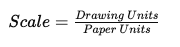
Plot Scale Formula
For paper-space plotting calculations:
Recommended Workflow
- Draw at full scale
- Annotate in layouts
- Use viewport scaling
- Plot from paper space
This avoids most plotting issues.
Xrefs and Cross-Platform File Management
This is one of the biggest failure points in mixed Mac/Windows environments.
Always Use Relative Paths
Set:
- PATH TYPE = Relative
This prevents broken Xrefs when projects move between:
- macOS
- Windows
- NAS servers
- Cloud storage
APFS vs Windows File Paths
macOS uses the APFS filesystem, which handles aliases differently than Windows shortcuts.
This can affect:
- Xrefs
- Image references
- PDF underlays
- Support file paths
If teams rely on absolute paths, Xrefs will eventually break during cross-platform collaboration.
Recommended Workflow
- Use relative paths
- Avoid desktop aliases
- Standardize project folder structures
- Keep Xrefs inside project directories
Cloud Storage Warning for CAD Teams
Do not actively draft directly inside:
- Dropbox sync roots
- OneDrive live folders
- Google Drive mirrored directories
Use:
- Local working copies
- Controlled sync workflows
- NAS caching when possible
Live sync conflicts corrupt drawings more often than most teams realize.
Common AutoCAD Mac Keyboard Differences
| Action | Windows | Mac |
|---|---|---|
| Properties | Ctrl + 1 | Cmd + 1 |
| Open File | Ctrl + O | Cmd + O |
| Screen Cleanup | Ctrl + 0 | Cmd + 0 |
| APPLOAD | APPLOAD | APPLOAD |
Best Keyboard Shortcuts for AutoCAD Mac Users
| Command | Shortcut |
|---|---|
| Line | L |
| Polyline | PL |
| Copy | CO |
| Move | M |
| Offset | O |
| Trim | TR |
| Extend | EX |
| Match Properties | MA |
AutoCAD for Mac System Requirements
Minimum Requirements
- Apple Silicon or Intel Mac
- macOS Ventura or newer
- 8 GB RAM
- SSD storage
Recommended Professional Setup
- M3 Pro or M3 Max
- 32 GB+ RAM
- External 4K monitor
- Dedicated SSD workspace
- SpaceMouse support
Official Autodesk requirements: Official AutoCAD System Requirements
Best MacBooks for AutoCAD
Best Overall
MacBook Pro M3 Pro 16-inch
Best balance of:
- Cooling
- Stability
- Battery life
- External monitor support
Best Portable Option
MacBook Air M2
Excellent for:
- Site work
- Interior design
- Field reviews
- Small drafting projects
Best Desktop Workstation
Mac Studio
Ideal for:
- Heavy Xref environments
- Multi-monitor setups
- Large commercial projects
- 3D workflows
Common AutoCAD for Mac Problems and Fixes
AutoCAD Feels Slow
Common Causes
- Large Xrefs
- Corrupt hatches
- Excessive PDF underlays
- Bad RegApps data
- Network storage latency
Recommended Fixes
- Run
-PURGE - Run
AUDIT - Reduce viewport complexity
- Use local SSD storage
- Remove unused Xrefs
Fonts Not Displaying Correctly
Missing SHX or TTF fonts are common during project exchanges.
Font Location
Install fonts inside:
~/Library/Application Support/Autodesk
Important macOS Note
The ~/Library/ folder is hidden by default on macOS.
To access it:
1. Open Finder
2. Press:
Cmd + Shift + G
- Paste the path manually
This avoids confusion for newer Mac users.
External Monitor Lag
Recommended Fixes
- Use DisplayPort when possible
- Avoid cheap USB hubs
- Disable unnecessary display scaling
- Keep GPU-intensive apps closed during plotting
Plotting Problems
Recommended Fixes
- Verify CTB/STB files
- Check viewport scales
- Use
DWG To PDF.pc3 - Reset page setups when importing layouts
Pro Tip for Windows Veterans
The Command Line behaves almost identically on Mac.
Most aliases remain unchanged:
- PL = Polyline
- O = Offset
- TR = Trim
- EX = Extend
Experienced CAD users usually regain full productivity within one to two weeks.
Production Workflow Recommendations for CAD Managers
Well-managed standards matter more than operating system preference.
Professional teams standardize:
- Templates
- CTB/STB files
- Layer standards
- Plotting workflows
- Shared blocks
- Relative Xref paths
- LISP utilities
A disciplined Mac environment outperforms a poorly managed Windows deployment every time.
Security and Backup Recommendations
Recommended setup:
- Time Machine backups
- Local SSD working files
- NAS archives
- Cloud versioning
- Automated project backups
Never rely on cloud sync alone as your primary CAD backup strategy.
FAQ About AutoCAD for Mac
Is AutoCAD for Mac as good as Windows?
For architecture, drafting, interior design, and production documentation, yes. Specialized Autodesk verticals still favor Windows.
Does AutoCAD run well on M1, M2, and M3 Macs?
Yes. Native Apple Silicon support significantly improved viewport performance, thermal stability, and battery life.
Does AutoLISP work on AutoCAD for Mac?
Yes. Modern versions support:
- AutoLISP
- DCL dialogs
- Automation routines
- CAD management scripting
What features are missing on Mac?
Some Windows-exclusive products remain unavailable:
- Civil 3D
- Electrical
- Map 3D
- Certain enterprise plugins
Which MacBook is best for AutoCAD?
For professional CAD production:
- MacBook Pro M3 Pro = best overall
- Mac Studio = best desktop
- MacBook Air M2 = best portable option
Can AutoCAD for Mac handle 3D modeling?
Yes.
Supported workflows include:
- Solid modeling
- Surface modeling
- Rendering
- Mesh editing
Heavy manufacturing environments may still prefer high-end Windows workstations.
Is AutoCAD for Mac suitable for large architecture firms?
Yes. Many firms now run full production pipelines on macOS, especially for architecture and interior design.
Final Perspective from a CAD Production Environment
AutoCAD for Mac is no longer a secondary CAD platform.
For architecture, drafting, construction documentation, and general engineering production, Apple Silicon systems now provide:
- Stable DWG handling
- Excellent battery life
- Quiet operation
- Reliable multi-monitor support
- Strong AutoLISP compatibility
- Professional-grade production capability
The deciding factor today is usually workflow preference and software ecosystem requirements — not raw drafting capability.